How to Fix Layer Shifting in 3D Prints
Published How we research
Layer shifting is easy to recognise: part of the print is suddenly offset sideways, as if the model was sliced and pushed over. It happens when the print head or bed loses its position during printing, and the printer continues as if nothing went wrong. The causes are usually mechanical, such as loose belts or pulleys, or related to speed, collisions and overheating stepper drivers.
Check belt tension
Loose belts can skip teeth on the pulley when the print head changes direction quickly, which shifts every following layer. A properly tensioned belt should feel firm and make a low twang when plucked, without being overtightened.
Check both X and Y belts for wear, frayed edges or missing teeth. Many printers have built-in belt tensioners that make adjustment simple.
Tighten pulleys and hardware
Motor pulleys are held on the shaft by small grub screws. If one loosens, the pulley can slip on the shaft while the motor keeps turning, causing sudden shifts. Tighten grub screws against the flat side of the motor shaft.
Also check eccentric nuts on wheel-based printers and screws on the print head and bed carriage. Wobbly carriages can bind and skip steps.
Reduce speed and acceleration
Printing too fast or with high acceleration can demand more torque than motors can provide, especially on heavier beds. Try reducing print speed, travel speed and acceleration in your slicer to see if shifting stops.
Fast printers designed for high speed use input shaping and stiffer frames. On older bed-slinger printers, conservative settings are often more reliable.
Prevent nozzle collisions
Curling or warped parts can catch the nozzle as it travels, knocking the print head or bed out of position. Enable avoid crossing perimeters or Z-hop on travel in the slicer to lift the nozzle during moves.
Improve bed adhesion and cooling to reduce curling, and check that loose filament or cables cannot snag the print head during printing.
Stepper drivers and electronics
Overheating stepper drivers can briefly shut down, causing missed steps. Make sure the electronics enclosure has airflow and that cooling fans work, especially in warm rooms or enclosed printers.
If shifting persists after mechanical checks, stepper motor current may be too low, or a motor cable connection may be loose. Adjust driver current carefully following the manufacturer's guidance.
Products from this article
The highest-scoring picks from the buying guides mentioned above. Scores are our editorial assessment, not customer ratings.
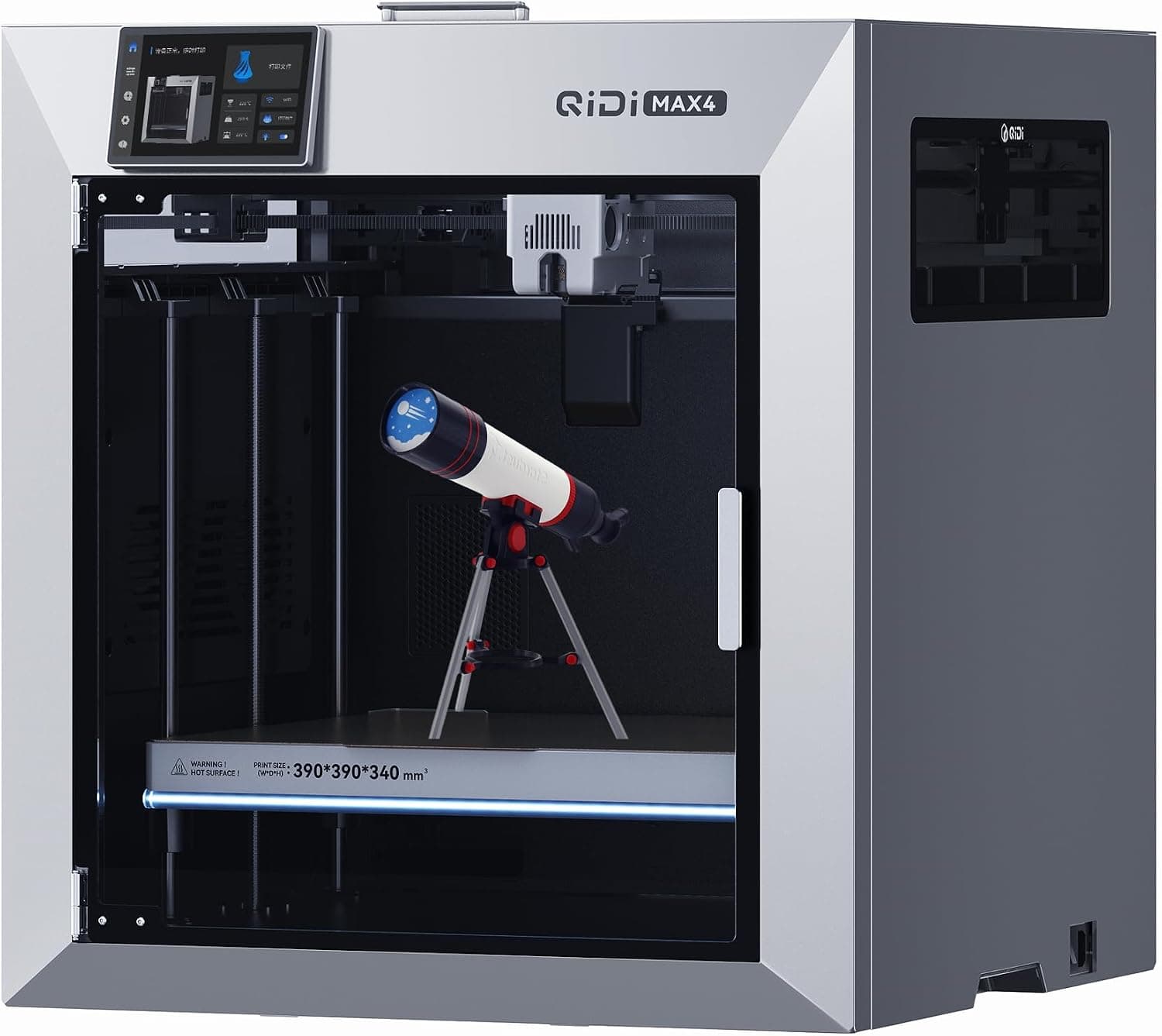
+ 390x390x340mm build is huge for an enclosed, heated CoreXY printer
From our guide: Best CoreXY 3D Printers for Speed and Accuracy (2026)
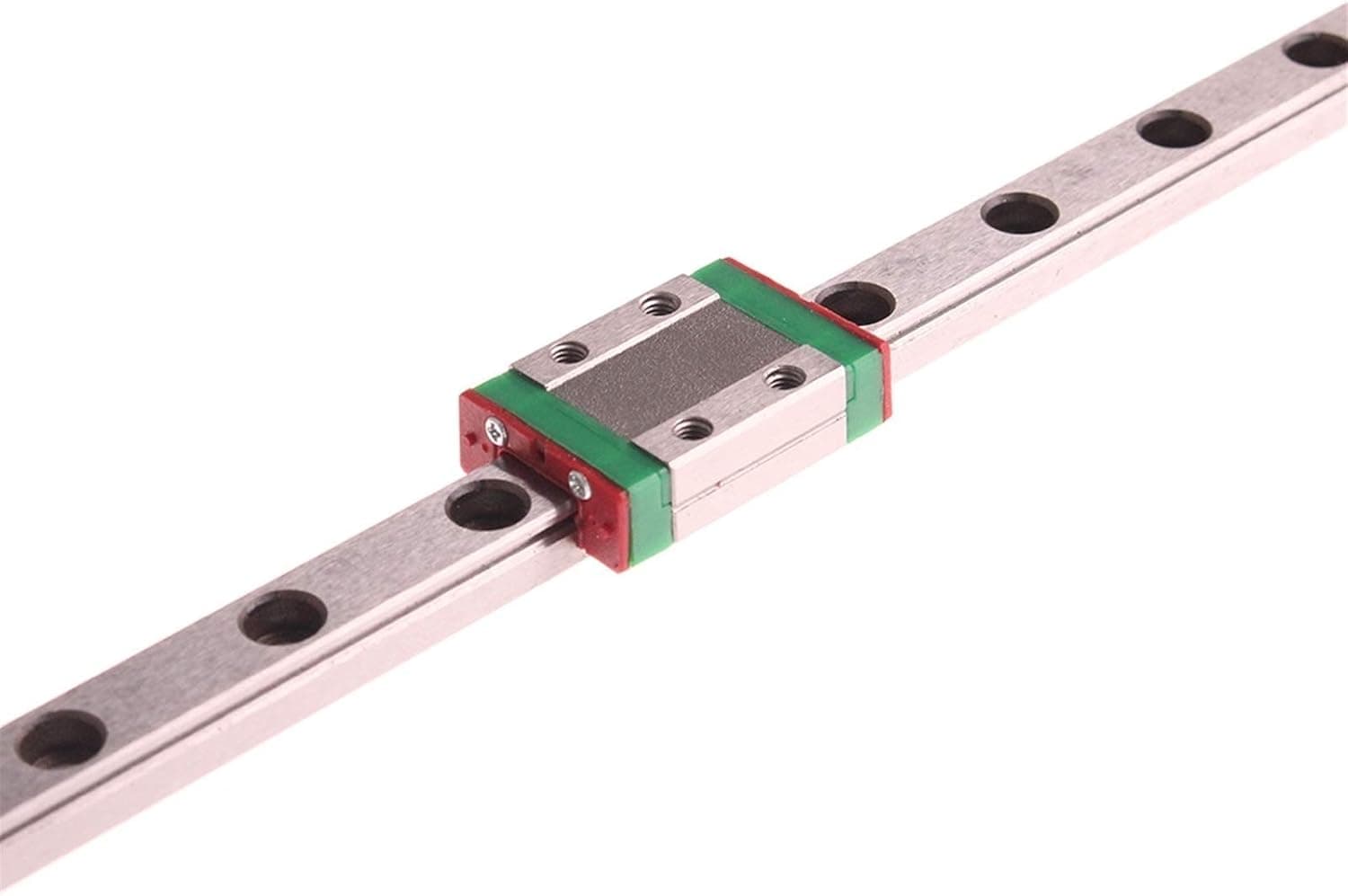
+ MGN9, MGN12 and MGN15 sizes cover light to heavy axis loads
From our guide: Best Linear Rails for Rigid, Precise Motion (2026)
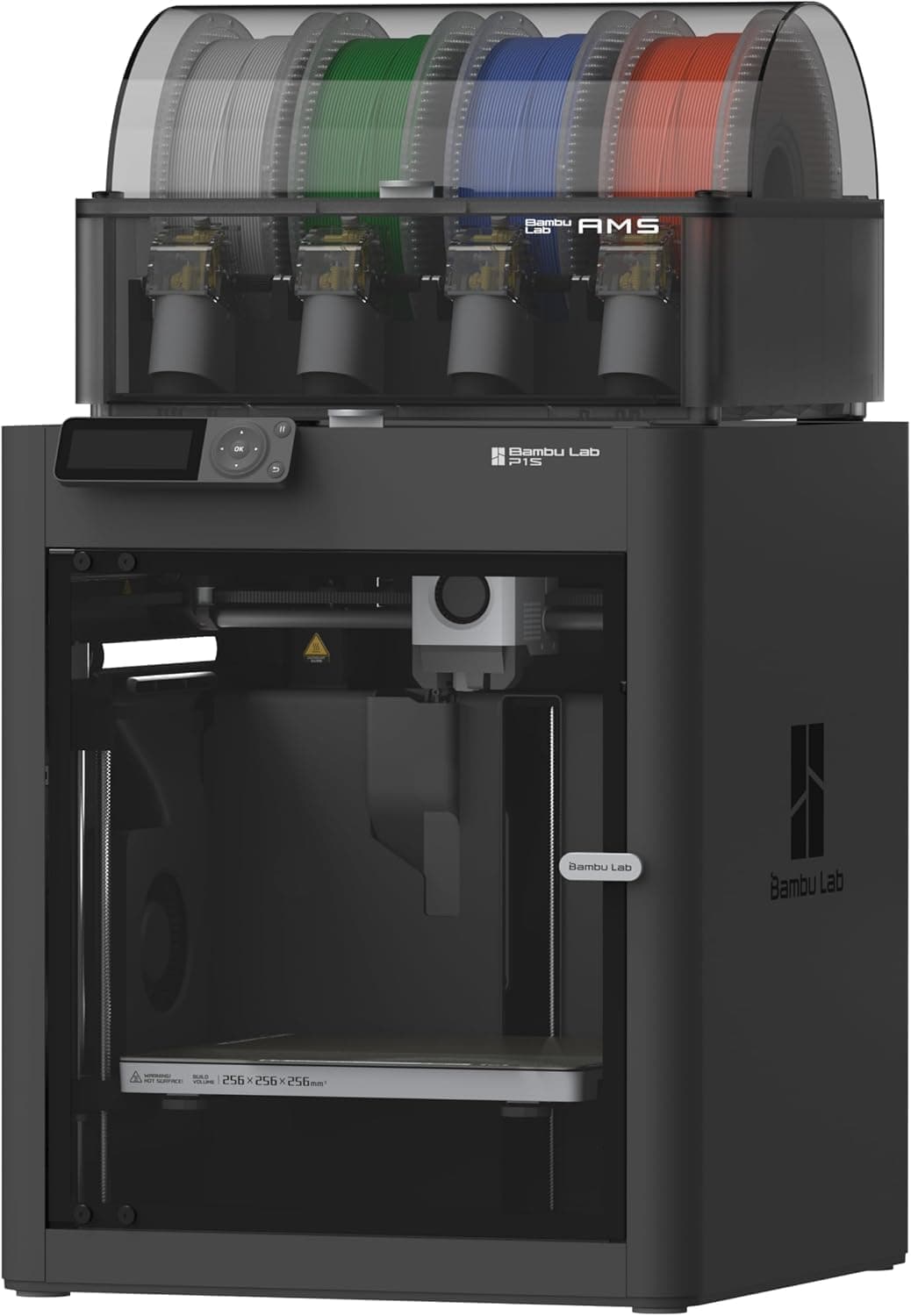
+ Multi-colour combo adds automatic filament switching to an enclosed printer
From our guide: Best Enclosed 3D Printers for ABS and Clean Prints (2026)
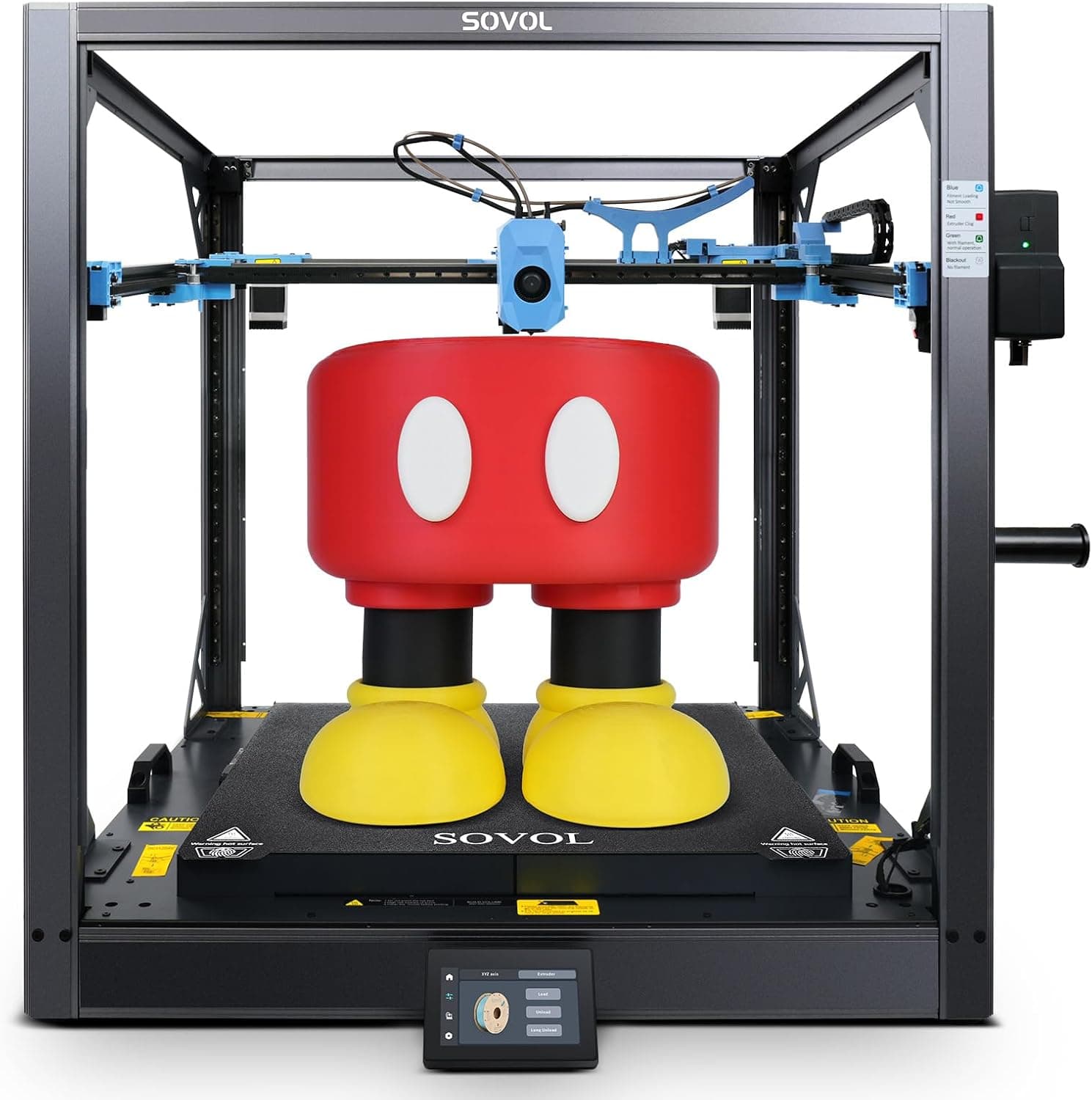
+ Voron 2.4 open source base means strong community mods and upgrades
From our guide: Best CoreXY 3D Printers for Speed and Accuracy (2026)
Popular right now
- Best Budget 3D Printers for Value Under Pressure (2026)Buying guide
- Best FDM 3D Printers for Reliable Everyday Prints (2026)Buying guide
- Best Resin 3D Printers for Sharp, Detailed Models (2026)Buying guide
- Troubleshooting a Failed 3D PrintArticle
- Best Beginner 3D Printers for a Smooth First Print (2026)Buying guide
- Temperature Tower GuideArticle
Based on the last 28 days of search and visitor data.